Import & Export
Import ReadyAPI tests to ALM and export ALM test sets to ReadyAPI.
Quick Start
1. Initialize a ReadyAPI Project
Right-click your project and select "Dragonfly: (Un)Initialize project":
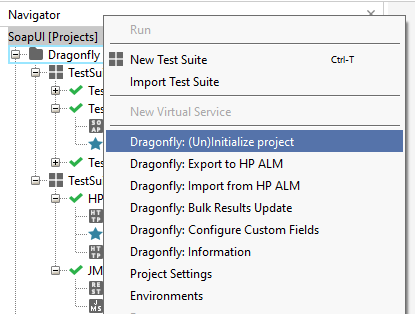
Click Yes in the confirmation dialog:
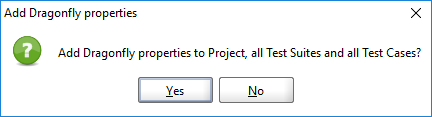
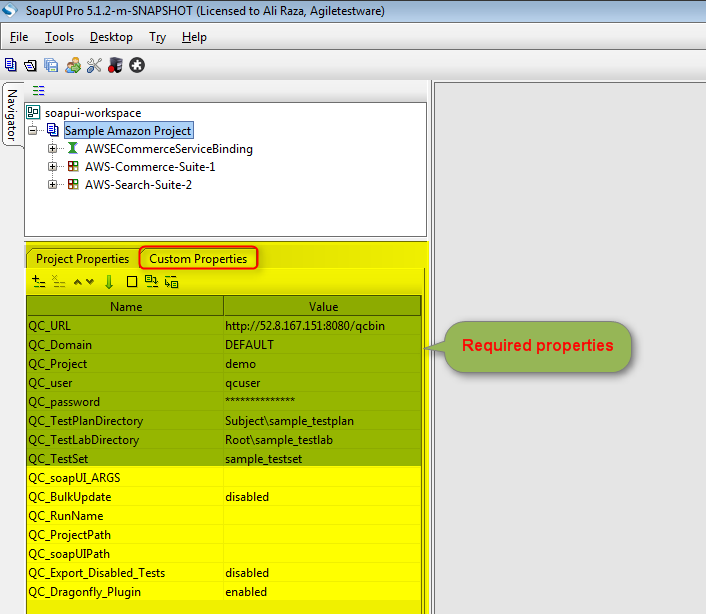
Dragonfly adds all required custom properties to your project, test suites, and test cases. Configure the highlighted required properties to match your ALM environment:
2. Export Project to ALM
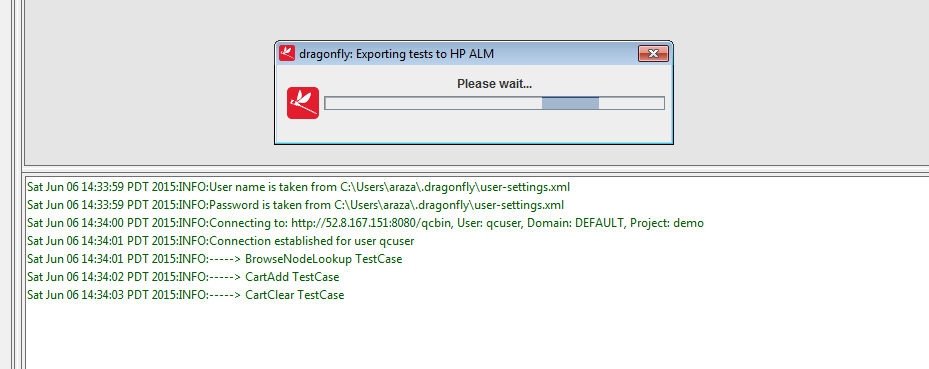
Right-click the project and select Dragonfly: Export to HP ALM. Dragonfly shows a progress bar and live status in the Dragonfly tab.
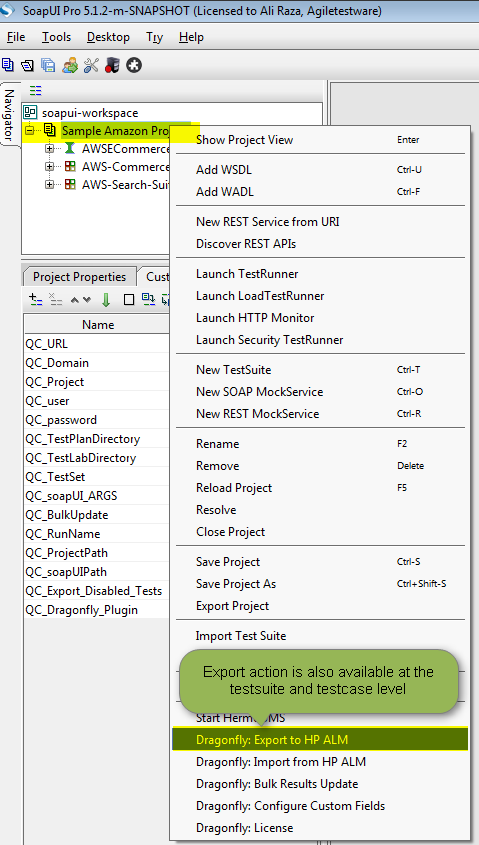
Export can also be invoked from a test suite or test case. Project-level export updates the entire project; suite/case-level export updates only that item.
3. Validate the Export
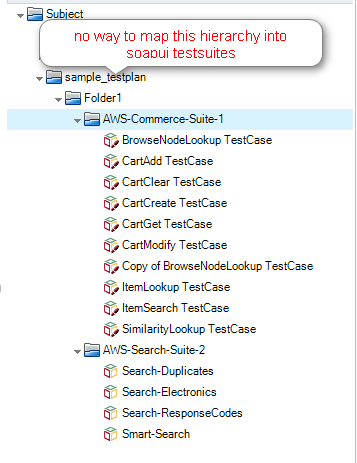
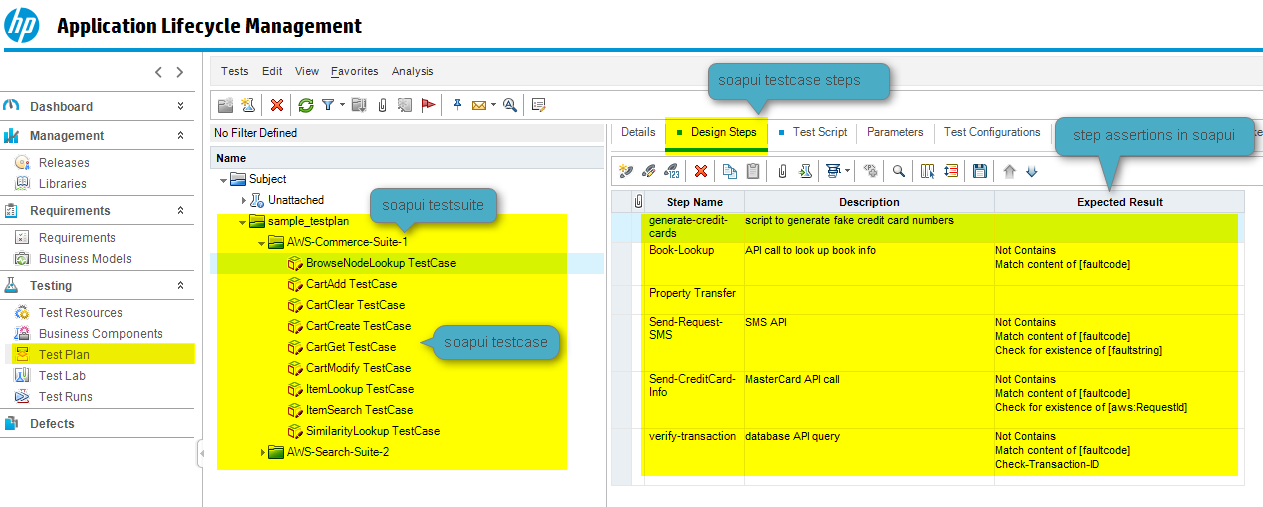
The ReadyAPI tests should now be visible in the specified TestPlan directory in HP ALM:
Import Tests from ALM
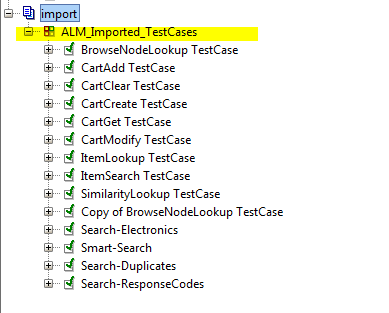
In organizations where test design starts in HP ALM TestPlan, Dragonfly can import those tests into a ReadyAPI project as a skeleton (test cases with no test steps). The team then adds ReadyAPI test steps to automate them.
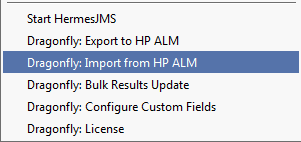
Configure QC_TestPlanDirectory in your project properties, then select Dragonfly: Import from HP ALM:
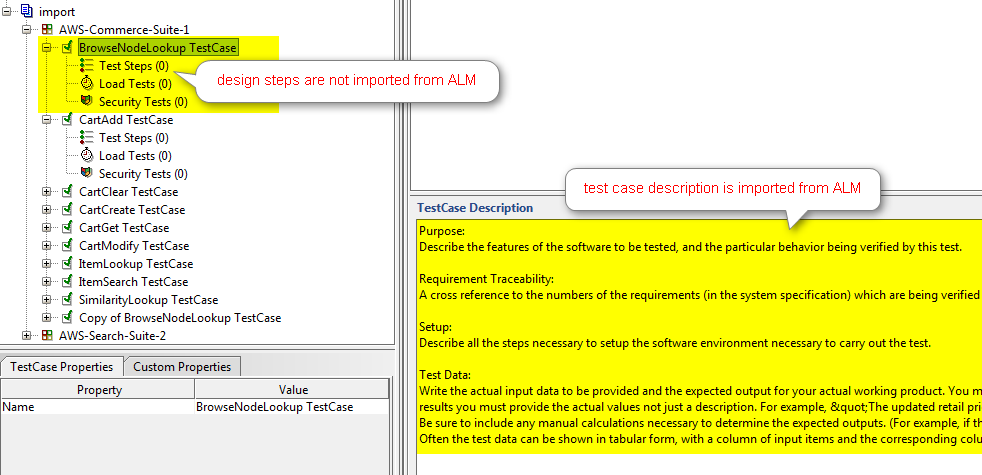
Dragonfly: Export to HP ALM always deletes existing design steps in ALM and re-creates them from ReadyAPI. This ensures ALM stays in sync with the ReadyAPI project.
ALM Folder Hierarchy
Dragonfly creates ReadyAPI test suites based on folders in ALM TestPlan. QC_TestPlanDirectory is the root. The import expects one level of child folders — each maps to a ReadyAPI test suite: