Security
SSL/HTTPS configuration and user management for Bumblebee.
Managing Users
Navigate to the Accounts tab in the Bumblebee web portal to create additional accounts or change passwords:
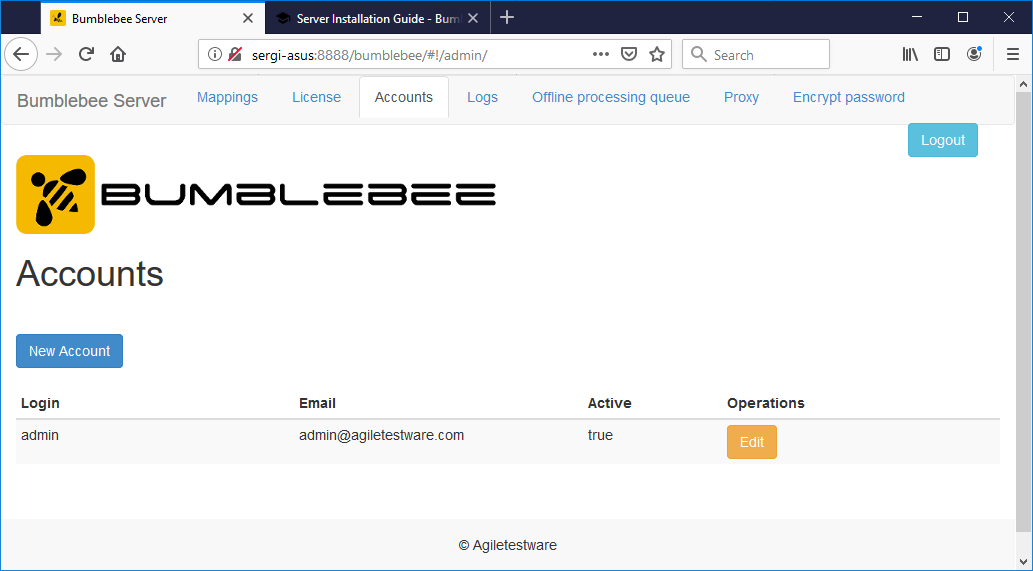
Change the default admin / admin credentials immediately after installation.
Enabling HTTPS / SSL
To secure the Bumblebee server with SSL, use a service like Let's Encrypt to obtain a certificate or generate a self-signed certificate.
Place the keystore file in the Bumblebee installation directory and create an application.yml file:
After configuring, restart the Bumblebee service:
- Windows: Restart the
BumbleBee HP ALM Integration Servicein Windows Services - Linux: Run
sudo ./shutdown.shthensudo ./startup.shfrom the Bumblebee installation directory
Generating a Self-Signed Certificate
Let's Encrypt
For internet-facing deployments, Let's Encrypt provides free auto-renewing certificates. After obtaining a certificate with Certbot, convert it to PKCS12 format:
Then reference keystore.pfx in your application.yml.